
Let’s Talk About Your Workflow
Be honest. How many times a day do you unlock your phone just to answer a WhatsApp call or send a quick voice note while working on your laptop?
For most Malaysian SME owners, this back-and-forth between mobile and desktop is a quiet productivity killer. You lose focus every time you pick up your phone. You fumble with Bluetooth pairing. You miss call logs because they were on your mobile while you were deep in a spreadsheet on your desktop.
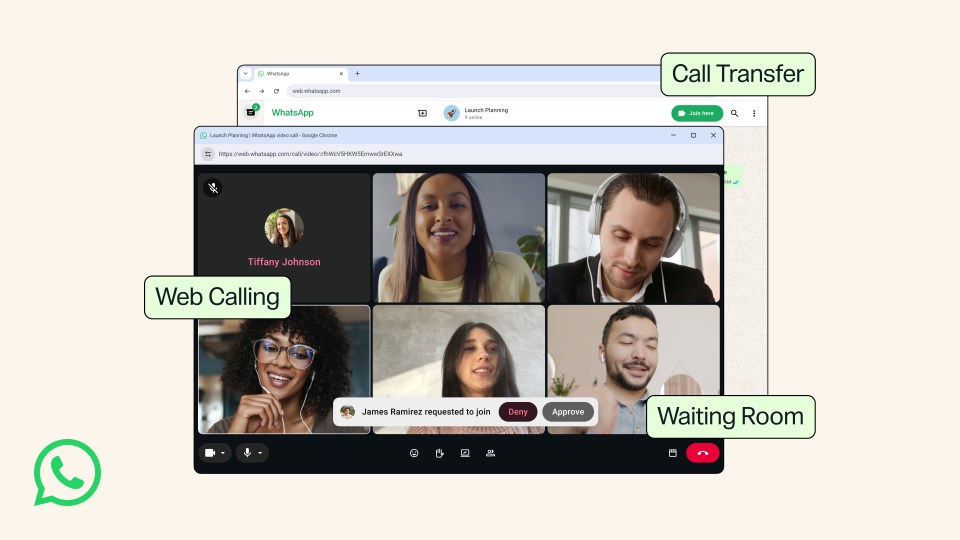
WhatsApp just solved this problem. You can now make and receive voice and video calls directly from WhatsApp Web. This turns your laptop into a full business phone.
TL;DR: WhatsApp Web now supports native voice and video calls. This means you can call clients directly from your browser without touching your phone. It supports screen sharing, better audio quality, and group calls. This guide shows you how to set it up and why it changes your daily workflow.
What This Actually Means for You
WhatsApp Web was always a strong tool for typing, but the phone remained the core device for actual conversations. Want to make a call? You had to physically pick up your mobile device. The result was a broken workflow. You typed an order on your laptop, grabbed your phone to call the client for a clarification, and then switched back.
Now, WhatsApp Web is a full desktop communication client. Voice calls, video calls, and screen sharing are all supported directly in your browser — Chrome, Firefox, or Edge. The feature relies on your computer’s microphone, speaker, and camera. The experience is much closer to a native desktop app without needing to install anything extra. According to the announcement from SoyaCincau, this update bridges a gap that existed for years. And since it is end-to-end encrypted, your business conversations stay just as private as they were on your phone.
How This Applies to Malaysian SMEs
If you run a business with 1 to 50 employees, your clients are almost certainly on WhatsApp. Over 90% of Malaysian smartphone users are active on WhatsApp. This feature directly impacts three common scenarios in daily business life.
1. The Online Merchant in Klang Valley
You take orders and handle support via WhatsApp. A customer has a complex question about sizing or stock. Instead of typing a wall of text, you can click their name and call them from your browser. Your inventory spreadsheet is right there. You can even share your screen to show them exactly what is available. No fumbling with a phone while looking at your monitor. It makes the conversation flow naturally.
2. The Service Business in Penang
You run a small creative agency. Weekly client check-ins happen on WhatsApp video calls because your clients find other tools complicated. Previously, you held your phone up like a news anchor. Now you can sit at your desk, start a WhatsApp video call from your browser, and share your screen to walk them through a live dashboard or a design preview. It looks professional and makes your explanations clearer.
3. The Wholesale Distributor in Johor
Your sales team is on the road. Back at the office, your staff processes orders. When a clarification is needed, the admin can call the salesperson directly from the browser while looking at the master order sheet. No more fumbling with voice notes or dropping calls because of poor mobile reception indoors. An office WiFi or LAN connection offers much clearer audio.
The Data Doesn’t Lie
Here is a quick comparison of why making calls from your desktop makes business sense:
| Action | Mobile App | WhatsApp Web (Desktop) |
|---|---|---|
| Finding a Contact | Unlock phone, open app, search | Contact is right on your screen |
| Sharing Files while Talking | App switching is clumsy | Open a folder or browser tab instantly |
| Group Call Management | Small screen, hard to multitask | Large screen, easy to manage participants |
| Audio Stability | Depends on mobile signal | Stable office internet connection |
Your Action Plan for This Week
Setting this up takes less than 30 seconds. Do it today.
- Step 1: Open your browser. Chrome, Firefox, or Edge all work well.
- Step 2: Go to web.whatsapp.com.
- Step 3: On your phone, open WhatsApp. Go to Settings > Linked Devices > Link a Device. Scan the QR code on your screen.
- Step 4: Click a chat. Look for the phone and video call icons at the top right. Click them. Your browser will ask for permission to use your mic and camera. Accept it.
- Step 5: Call a friend or colleague to test the audio. If your laptop microphone picks up too much keyboard noise, consider using a simple USB headset.
The Bigger Picture for Your Business
This update signals a bigger shift in how Meta approaches business tools. They are building a single communication hub that works across all your devices.
For the SME owner, this means your tools are unifying. You no longer need a separate desk phone system for voice calls or a separate video tool for client meetings. It can all live inside the chat window you use all day. The line between “personal chat app” and “business phone system” is fading.
This also normalises video calls for businesses that relied purely on voice or text before. It makes your operation look sharper and more structured. Your laptop is no longer just a typing machine — it is your primary business line. In a market where your time is your scarcest resource, removing the friction between typing and talking is a simple win.
Ready to Streamline Your Operations?
Your business should run itself. AutoRunBiz deploys AI agents to automate your daily operations — WhatsApp orders, invoicing, customer follow-ups, and accounting. Book a free 15-min ops audit to see where automation fits your business →