
Your Existing Computers May Still Have More to Give
If your business has a few older office computers, you may already know the problem: they still handle email, invoicing, spreadsheets and browser-based systems, but newer software feels slower and AI tools can be difficult to use. Replacing every machine is not always the first practical step, especially when your team mainly works through web applications.
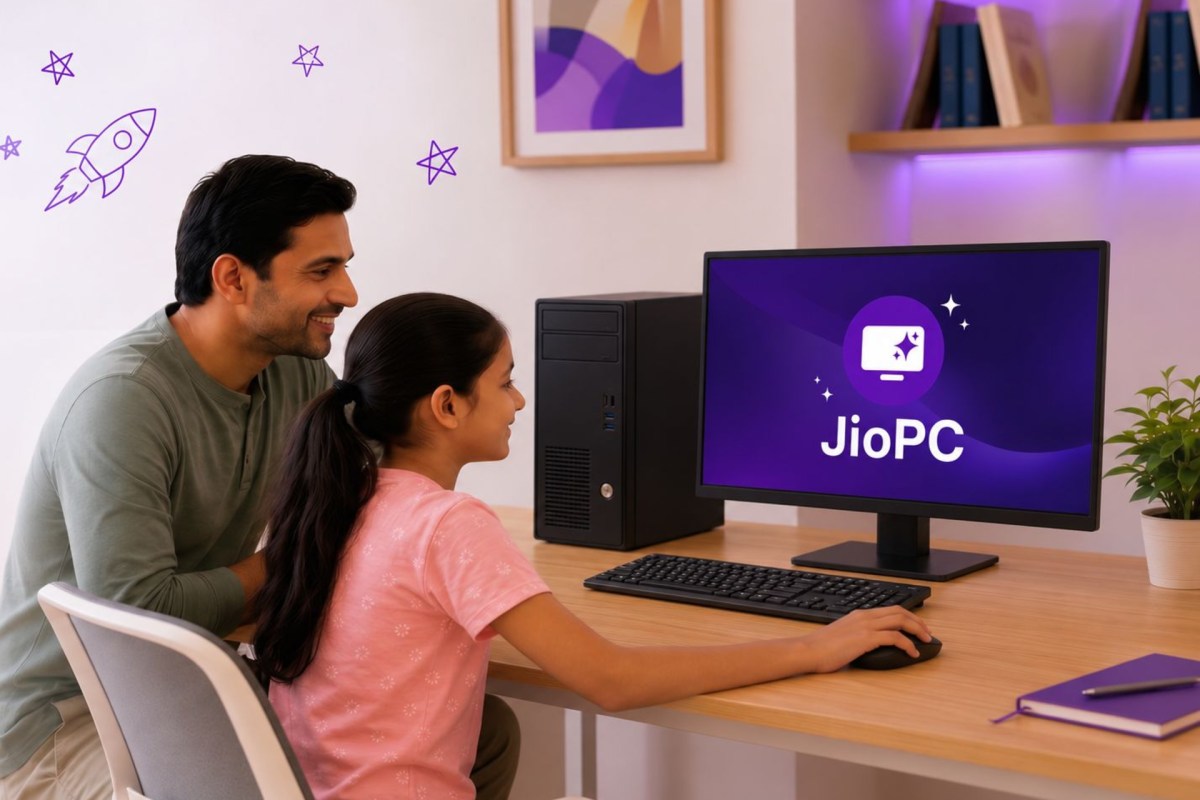
A new cloud PC service from India’s Reliance Jio offers a useful idea for Malaysian SME owners: instead of putting all computing power inside each computer, you can stream a virtual computer from a remote data centre to an existing device. The older machine becomes a screen, keyboard and connection point, while heavier processing happens in the cloud.
TL;DR: Cloud PCs may help you extend the useful life of older computers and give staff access to more demanding applications. However, they depend heavily on stable internet, careful security controls and a workflow that suits cloud-based work.
What This Means
JioPC was originally available to the company’s broadband subscribers. It has now been opened to any internet user in India, regardless of their telecom or broadband provider. The service streams a virtual PC from the cloud to an existing computer, with plans offering up to eight virtual CPUs, 16GB of RAM and 1TB of storage, according to TechCrunch.
In simple terms, your physical computer does less of the demanding work. The cloud computer runs applications, stores files and processes tasks. Your local device displays the result and sends your keyboard and mouse input back to the cloud service.
This is different from buying an “AI PC” with a dedicated processor designed for on-device AI workloads. A cloud PC can provide access to stronger remote computing, but it may not deliver the same experience when you are offline or when an application needs specialised hardware installed inside the machine.
The concept is particularly relevant because computers are being kept for longer. In India, consumer and small-business PC replacement cycles have extended to five or six years, compared with four to five years in 2022, while enterprise replacement cycles have reached about four years, according to IDC estimates reported by TechCrunch. The exact timing will differ in Malaysia, but the business question is familiar: can you improve staff productivity without replacing every working device?
The useful question is not “Is this computer old?” but “Which parts of this employee’s work actually require local computing power?”
How This Applies to Malaysian SMEs
For a Malaysian accounting firm, property agency or trading company, many daily applications already run in a browser. Your staff may use cloud accounting, customer relationship management, online banking portals, document management systems and messaging tools. If the older computer can connect reliably and display web applications smoothly, a cloud desktop could allow you to centralise more of the demanding work without immediately changing every device.
Consider a small design, marketing or video-production team. One employee may need more computing capacity for image processing, large presentations or data analysis, while other staff mainly handle email and administration. Instead of treating every workstation as identical, you could assess which roles need a virtual desktop with stronger specifications. This role-based approach may be more sensible than buying high-performance machines for the entire office.
Cloud PCs could also support branch offices and hybrid teams. A Malaysian SME with a headquarters in Selangor and staff working from Penang, Johor or Sabah may want everyone to access the same work environment. A centrally managed virtual desktop can make it easier to standardise applications, folders and access settings. However, your internet connection becomes part of the workstation. A weak Wi-Fi signal, overloaded router or service interruption can affect work immediately.
For retail, logistics and service businesses, the idea may be useful for back-office terminals that do not need powerful local hardware. A sales coordinator could use an older desktop to access inventory systems, prepare quotations and review reports through a streamed workspace. On the other hand, a point-of-sale terminal or warehouse device may need local functionality so operations continue during an internet outage.
You should also consider data location and access requirements. If customer records, payroll information or confidential contracts are handled through a cloud PC, ask where the data is stored, how administrators control access and how activity is logged. The cloud provider’s technical documentation and contract terms matter more than the phrase “AI-ready”.
Cloud PC Suitability at a Glance
| Business situation | Possible fit | Important condition |
|---|---|---|
| Browser-based accounting and CRM | Good candidate | Stable internet and controlled user access |
| Remote administrative staff | Potentially useful | Reliable home or branch connectivity |
| Video editing and 3D work | Requires testing | Check latency, graphics support and file transfer |
| Point-of-sale operations | Use carefully | Offline continuity must be available |
| Confidential client information | Requires review | Confirm security, audit and data-handling controls |
What You Should Check Before Trying It
First, measure the actual bottleneck. A slow computer may be caused by a failing storage drive, too many startup applications, poor Wi-Fi or outdated software rather than insufficient processing power. Ask your staff when the slowdown happens and which applications are involved. Do not assume a cloud PC will fix an internet or workflow problem.
Second, test the connection during busy periods. A cloud desktop may feel acceptable early in the morning but become frustrating when many employees are using the same office connection. Test it while staff are on video calls, uploading files and accessing business systems. Pay attention to delay when typing, scrolling and opening documents.
Third, separate cloud access from cloud backup. A virtual desktop does not automatically mean your files are safely backed up. You still need a documented backup approach, retention rules and a recovery process. Ask who can restore files and how quickly your business can resume work after an account or service problem.
Fourth, protect user accounts. Use multi-factor authentication where available, give each employee an individual account and remove access promptly when someone leaves. Avoid shared administrator passwords. Your virtual desktop provider should support permissions that match each person’s role.
Fifth, keep a fallback plan. Identify which activities must continue if the cloud service or internet connection is unavailable. You may need local copies of essential contact information, printed delivery instructions, mobile connectivity or a separate device for emergency access.
Practical Takeaways
- List every computer in your office, its age, main user and most-used applications.
- Mark which tasks are browser-based and which require specialised local software.
- Run a one-week test with one low-risk employee before considering wider adoption.
- Measure response time during peak office hours, not only during quiet periods.
- Confirm whether printers, scanners, USB devices and multiple monitors work with the virtual desktop.
- Ask the provider about data location, encryption, access logs, administrator controls and account recovery.
- Keep at least one practical offline process for urgent sales, delivery or customer-service work.
- Review your internet capacity and internal network before blaming the old computer.
- Do not describe a cloud PC as a replacement for every new computer; match it to suitable roles.
The Bigger Picture
The important trend is a change in how businesses think about computing. Traditionally, you bought a machine with a fixed level of performance and replaced it when that performance was no longer enough. Cloud PCs separate the user experience from the physical device, allowing computing capacity to be adjusted centrally.
That does not mean local computers will disappear. Some work requires offline access, specialist peripherals, fast graphics or direct control over files. Refurbished devices can also remain useful for straightforward tasks. The better approach is to create a mixed environment: local machines where reliability and offline access matter, and cloud desktops where central management and remote processing are more suitable.
For Malaysian SMEs, this could support more deliberate technology planning. Instead of replacing devices based only on age, you can assess each role, application and risk. A five-year-old computer may be perfectly adequate for a receptionist using a browser-based system, while a newer machine may still struggle with a specialist workload.
The Jio example also highlights a limitation: cloud computing depends on connectivity. India’s service is aimed partly at users who cannot justify a new AI-capable PC, but the reported analysis also notes that conventional computers continue to offer an important advantage: they can keep working when the internet is unavailable, as described by TechCrunch.
Before you act, run a small, controlled test. Choose one non-critical workstation, document the employee’s tasks, test the connection and review the security controls. If the experience is stable and the workflow suits it, you can decide where cloud desktops belong in your broader automation plan. The goal is not to make every old computer “AI-ready”; it is to give each employee the right working environment for the job.
Ready to Streamline Your Operations?
Your business should run itself. AutoRunBiz deploys AI agents to automate your daily operations — WhatsApp orders, invoicing, customer follow-ups, and accounting. Book a free 15-min ops audit to see where automation fits your business →